Creating a data rule
Create a data rule to grant access in a controlled, reviewable, and auditable way in Infinite Data.
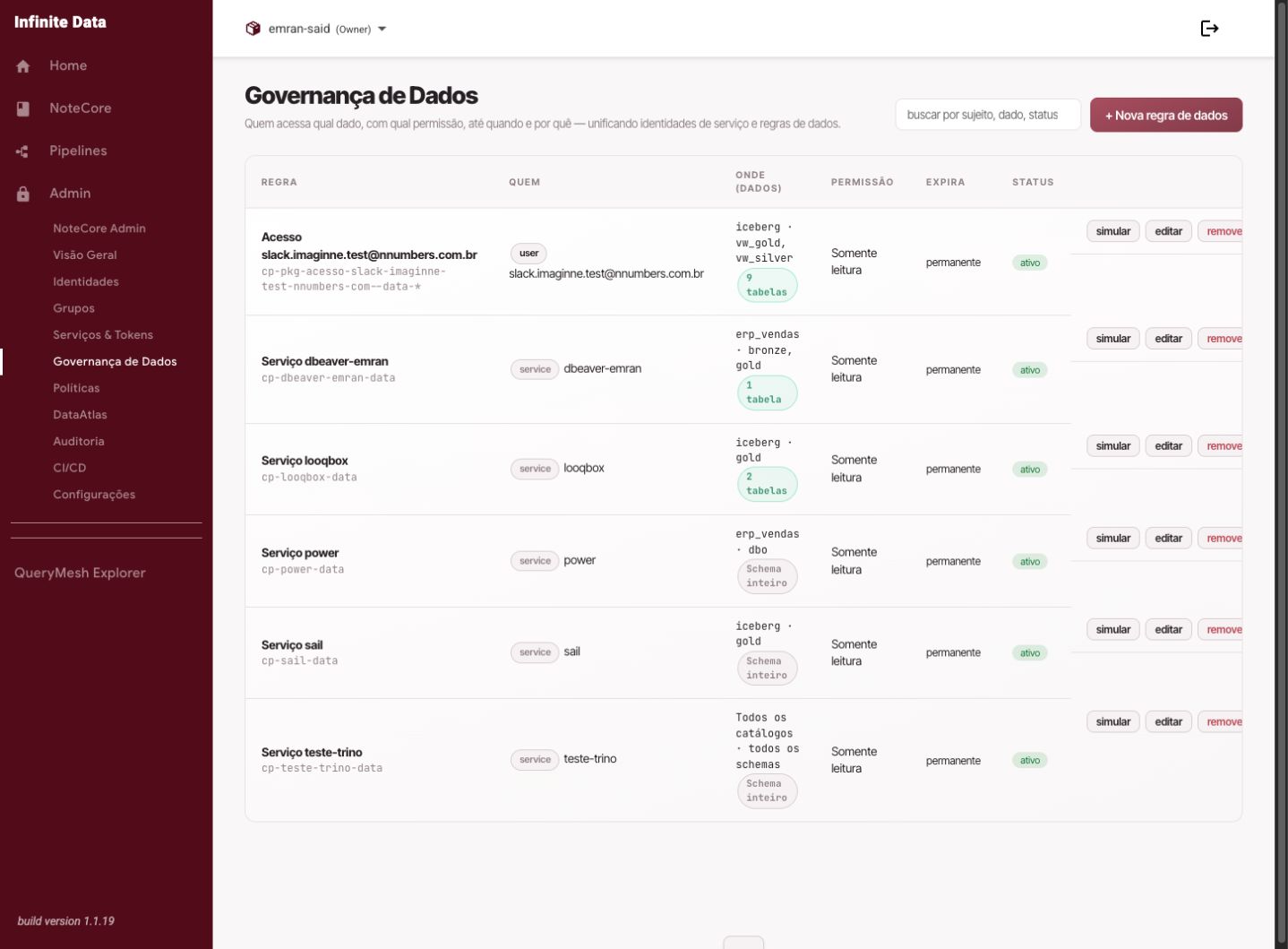
When to use this
- Use it when a person, group, or service account needs to query data.
- Use it when the access should be temporary or protected by masks and filters.
- Use it when an access denial has been reviewed and approved by the manager.
Before you start
- Have an access manager role.
- Confirm who will receive the access.
- Confirm the catalog, schema, tables, and the purpose of the use.
- Decide whether there will be an expiry, a column mask, or a row filter.
In Infinite Data's Data Governance, a Data Rule can grant access to a person, a group, or a service account. When the same access has to apply to several people, create a single rule for a Group and control access through that group's membership, adding or removing members.
Why: Infinite Data's governance helps avoid duplicate rules for the same data set. If a rule already covers exactly the same catalog, schema, and table, the Console may warn: "An access rule already covers the same data set." That message is about the data you chose, not about the person. The correct way to share is a Group: one rule, several members.
Step by step
- Open Data Governance.
- Click New data rule.
- Choose who will receive the access; if the same access applies to several people, select Group.
- Select the catalog and the data that will go into the rule.
- Choose Whole schema or Specific tables.
- Configure the expiry and protections where needed.
- Use the simulation to check the expected effect.
- Review the final summary and save the rule.
To share the same access with several people:
- In Users & Access (Access Manager), create the group (for example, data-eng) and add the users.
- In Data Governance, click New data rule and choose Group as the recipient of the access.
- Select the data and the permission, and review the summary before saving.
- To grant or withdraw access later, change the group's membership. The rule stays the same.
What happens next
- The action is recorded in the audit trail with the user, the time, the object affected, and the outcome.
- Access changes can take a short propagation period before they appear for everyone.
- Anyone affected should refresh the screen or open a new session after propagation.
Common errors
- Subject not found: confirm the name, email, group, or service account.
- Catalog unavailable: ask the administrator to check its availability in the Console.
- Incorrect summary: go back a step and adjust before saving.
- "An access rule already covers the same data set": another rule already covers that catalog, schema, and table. It is not an error about the person you chose; use a group, or choose a different data set.
Good practice
- Always review the final summary carefully.
- Use expiry for projects, incidents, and one-off analysis.
- Avoid granting a whole schema when a few tables meet the need.
- Prefer a Group for any access shared by more than one person.
- Avoid per-user rules that duplicate the same data set.
Next steps
Was this page helpful?
Report a problem on this pageDo not send passwords, keys, tokens, or customer data.