Using QueryMesh Explorer
Use QueryMesh Explorer to browse released tables, write SQL queries, run previews, and analyze results in the Console.
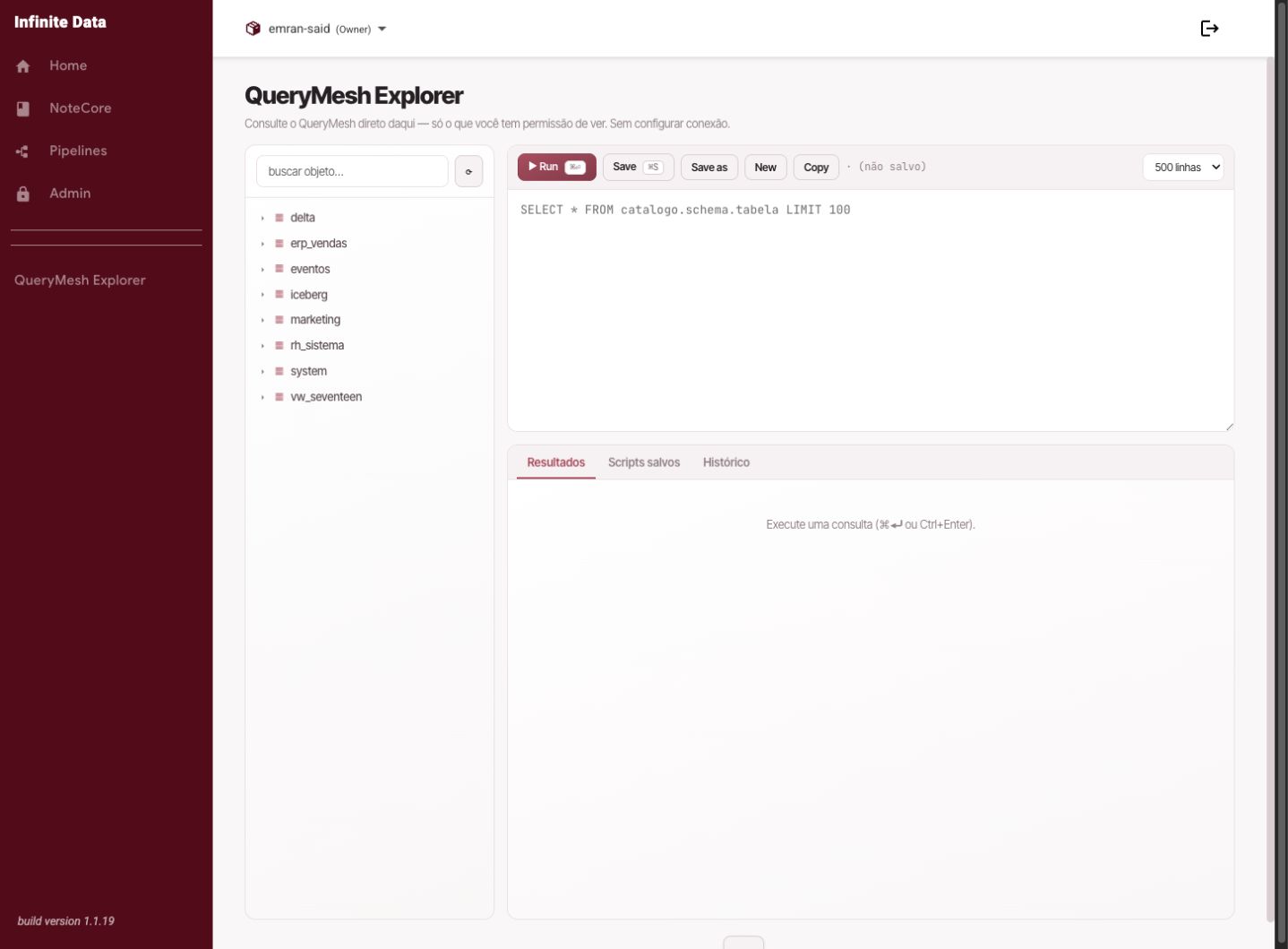
When to use this
- Use it when you already know which data to query, or want to explore the available tables.
- Use it to validate a hypothesis with SQL.
- Use it to save scripts you will reuse day to day.
Before you start
- You need a data querying role.
- The table has to be available to your user or group.
- Be careful with broad queries on large tables.
Step by step
- Open QueryMesh Explorer in the side menu.
- Browse the tree of catalogs, schemas, and tables.
- Select a table to see its columns and available actions.
- Use the preview action to get to know the structure before querying a lot of data.
- Write your SQL query in the editor.
- Run the query and review the results in the results tab.
- Save the script if it will be used again.
What happens next
- The run appears in the query history.
- Queries and denials become available for auditing and lineage where applicable.
- Results respect the access rules, column masks, and row filters set by governance.
Common errors
- Access denied: you are not cleared to query the data you asked for.
- Table not found: check the catalog, the schema, and the table's name.
- Query too broad: reduce the columns, the filters, or the number of rows.
Good practice
- Start with previews and small filters.
- Save scripts with clear names and a business purpose.
- Do not copy sensitive data outside the processes your organization has approved.
Next steps
Was this page helpful?
Report a problem on this pageDo not send passwords, keys, tokens, or customer data.