First sign-in
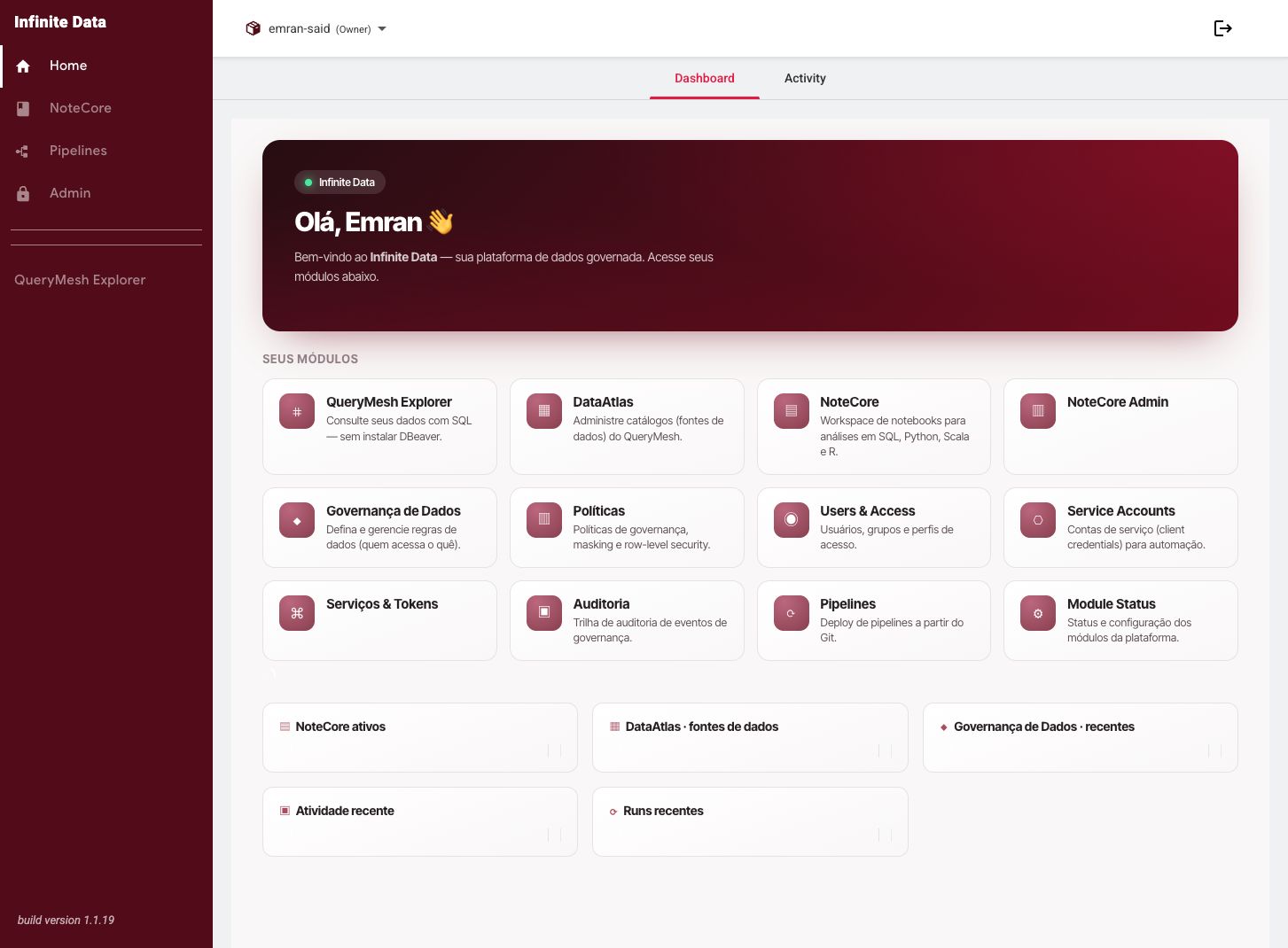
Learn how to sign in to the Infinite Data Console, confirm your usage role, and find the main areas available to you.
When to use this
- Use it when you open the product for the first time.
- Use it when your role changed and you need to confirm what is different.
- Use it when someone new on the team needs to start querying or administering data.
Before you start
- You must have been granted access to your organization's environment.
- Have your corporate user account at hand.
- Confirm with your administrator which usage role should be available to you.
Step by step
- Open the Console address your organization gave you.
- Sign in with your corporate user account.
- Wait for the home page to load.
- Check your name or identifier at the top of the screen.
- Open the side menu and see which areas appear for you.
- If you expected to query data, look for Data Catalog or QueryMesh Explorer.
- If you expected to administer access, look for Data Governance, Users, Groups, or Service Accounts.
What happens next
- The Console shows only the areas compatible with your role.
- Your sign-in is recorded for security purposes.
- If a role is adjusted, you may need to refresh the page to see the change.
Common errors
- The screen does not load: confirm you are using the right address and try again.
- User with no role: ask your administrator to finish setting you up.
- The area you expected does not appear: ask for your usage role to be reviewed.
Good practice
- Do not share your session with other people.
- On your first sign-in, check that you see only the areas your work requires.
- Record access questions with context: the area you expected, the goal, and the data you need.
Next steps
Was this page helpful?
Report a problem on this pageDo not send passwords, keys, tokens, or customer data.