Orchestration
Orchestration lets you provision resources — or a whole environment — through code.
Managing templates
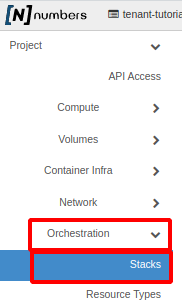
Open the Cloud console
In the left menu, click Orchestration -> Stacks
In the template list you can load a template (Item 1), preview what the template will do (Item 2), or run some actions on the template (Item 3)
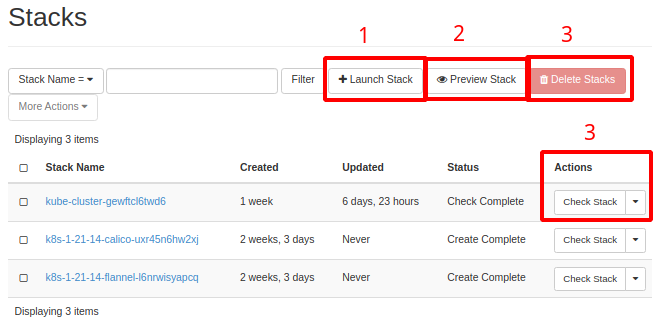
Options available for managing the template (Item 3):
- Check Stack — starts the template check
- Resume Stack — resumes the template deployment
- Suspend Stack — pauses the template deployment
- Change Stack Template — lets you submit a new configuration for the template.
- Delete Stack — removes the template / deployment
Loading a previously created template
Following the Managing templates walkthrough, click + Launch Stack. The following form opens, where you fill in:
- Template Source — choose how you want to submit the template file (file upload, copy and paste directly into the form, or download from a URL)
- Environment Source — template variables used to start deploying the resource. It can be loaded from a file, copied and pasted into the form, or downloaded from a URL.
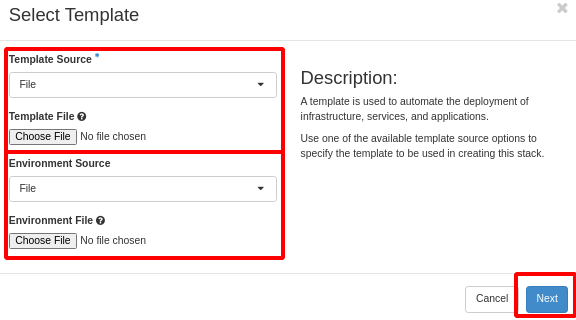
Once filled in, click the Next button at the bottom.
DRAG AND DROP IS NOT WORKING ON CHROME (macOS AND LINUX), FIREFOX (LINUX), OR OPERA (macOS).
TESTED ON THE FOLLOWING BROWSERS AND OPERATING SYSTEMS: CHROME (LINUX AND macOS), FIREFOX (LINUX AND macOS), OPERA (macOS), SAFARI (macOS).
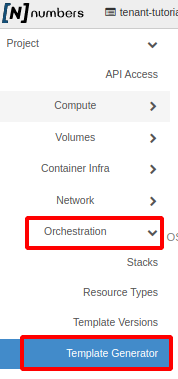
Open the Cloud console
In the left menu, click Orchestration -> Template Generator
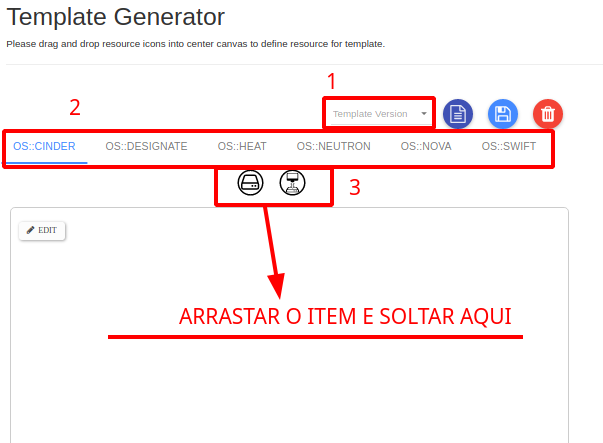
The template editor loads. The options are:
- Template Version (Item 1): the version to use for the template
- Resource menu (Item 2):
- OS:CINDER — resources related to DISK / VOLUME
- OS:DESIGNATE — DNS resources (we are not currently offering this service).
- OS:HEAT — resources and settings for scaling the environment you create
- OS:NEUTRON — networking resources
- OS:NOVA — compute resources such as VMs and access keys
- OS:SWIFT — bucket resources for file storage
To use the template generator, select the resource you want (Item 2) and drag it (Item 3) onto the canvas, as shown
Next steps
Was this page helpful?
Report a problem on this pageDo not send passwords, keys, tokens, or customer data.