Site-to-site VPN
NNumbers Cloud's Virtual Private Network (VPN) service is a site-to-site VPN: it links your private network in the Cloud to the network at another location — an office, a data center, or another provider — over an encrypted tunnel across the internet.
The topology
Before clicking anything, be clear about the layout. The values below are examples:
      YOUR NETWORK IN THE CLOUD                   REMOTE NETWORK
     ┌───────────────────────┐                ┌───────────────────────┐
     │  10.0.0.0/24          │                │  192.168.50.0/24      │
     │                       │                │                       │
     │  instances            │                │  servers              │
     │      │                │                │        │              │
     │  ┌───┴────────┐       │                │  ┌─────┴──────┐       │
     │  │   router   │       │                │  │  firewall  │       │
     │  └───┬────────┘       │                │  └─────┬──────┘       │
     └──────┼────────────────┘                └────────┼──────────────┘
            │  public IP                               │  public IP
            │  203.0.113.10                            │  198.51.100.20
            │                                          │
            └───────────────  IPsec tunnel  ───────────┘
                          allowed traffic:
                    10.0.0.0/24  ⟷  192.168.50.0/24
| Element | What it is | Where it goes |
|---|---|---|
| Local network | Your Cloud subnet | Endpoint group of type Subnet |
| Remote network | The subnet on the other side | Endpoint group of type CIDR |
| Peer gateway | Public IP of the remote equipment | Peer gateway field |
| Peer ID | Identity the remote side presents | Peer ID field |
| PSK | Shared secret | Pre-Shared Key field |
Prerequisites
- A network and subnet created, with a router connected to the external network. See Networks and Routers.
- Non-overlapping CIDRs on the two sides.
10.0.0.0/24on both sides does not route. - The public IP and identity of the remote gateway.
- An agreed PSK, generated and transported securely.
- Agreement with the other side on IKE version, algorithms, PFS, and lifetime — both sides must match.
- Security groups that allow traffic between the two ranges. See Security groups.
The order of the steps
The console requires objects to exist before they can be referenced. Follow this order:
- IKE policy
- IPsec policy
- VPN service
- Local endpoint group (type
Subnet) - Remote endpoint group (type
CIDR) - IPsec site connection
- Check the tunnel state
- Routes and security groups
- Test the traffic
Managing your VPN(s)
Open the NNumbers Cloud console
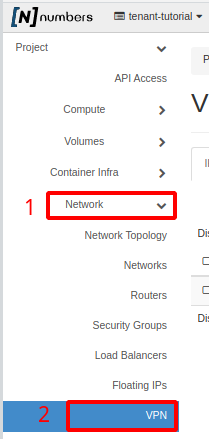
In the left menu, click Network and then VPN:
The next page lists the VPNs added previously:
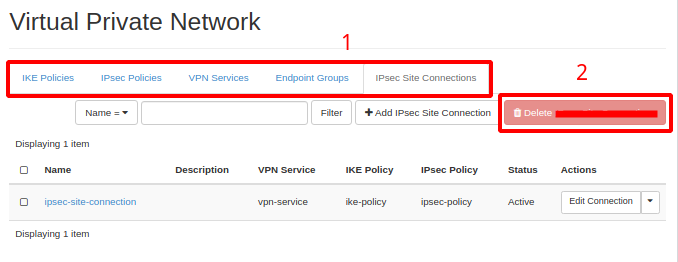
The menu at the top of the page (item 1) holds the VPN connection configuration. You can delete a configuration by selecting it in the list and clicking Delete… (item 2).
Creating a VPN connection
Internal Key Exchange Policies
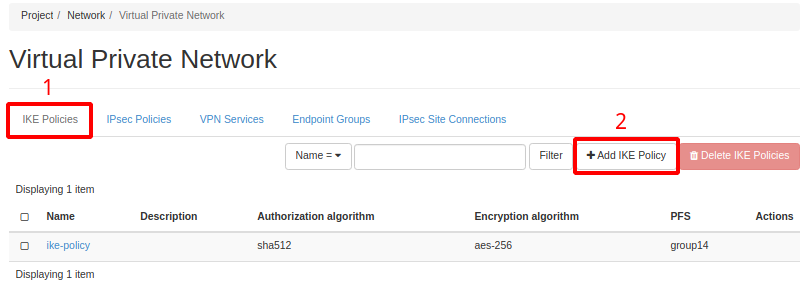
Following the Managing your VPN(s) walkthrough, click IKE Policies in the top menu (item 1) and then + Add IKE Policy
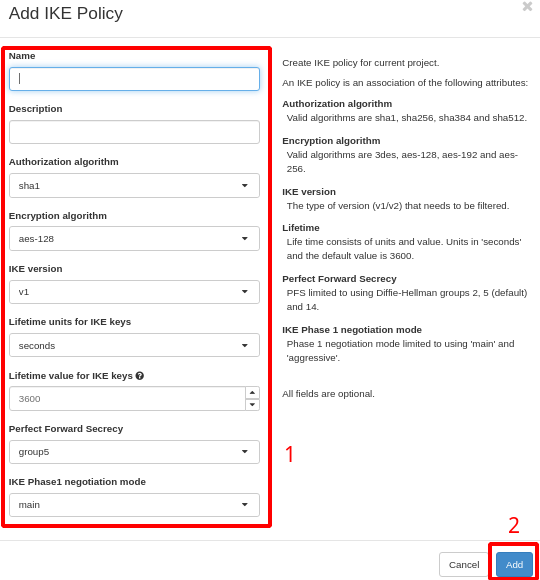
In the window that opens, fill in the options (remember that for the VPN to work, the side accepting the connection needs the same parameters):
- Name (any name that identifies the IKE policy)
- Description (optional field, fill in any description)
- Authorization Algorithm — despite the on-screen label, this is the authentication (integrity) algorithm for the IKE phase: it proves the message was not altered and came from the expected peer. It has nothing to do with access authorization. Both sides must use the same value
- Encryption algorithm (the connection's encryption algorithm)
- IKE Version (the IKE protocol version)
- Lifetime units for IKE keys — the unit for the key lifetime:
seconds- Lifetime value for IKE keys — how long the phase 1 key is valid before it is renegotiated. A common value is
86400(24 h). A shorter lifetime renegotiates more often and exposes less material per key- Perfect Forward Secrecy — the Diffie-Hellman group used in the exchange. With PFS, each session derives its own key: if the long-term key leaks later, traffic already captured stays undecipherable. Without PFS, that same leak opens past sessions. Larger groups (
group14and above) give more margin; the value must be identical on both sides- IKE Phase 1 negotiation mode (select the negotiation type)
Once the form is filled in, click Add at the bottom (item 2)
IPsec Policies
In the top menu click IPsec Policies (item 1) and then + Add IPSec Policy (item 2).
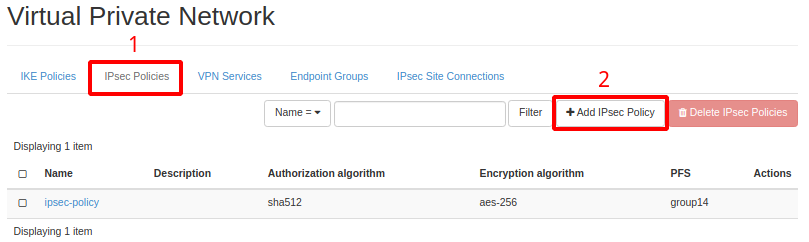
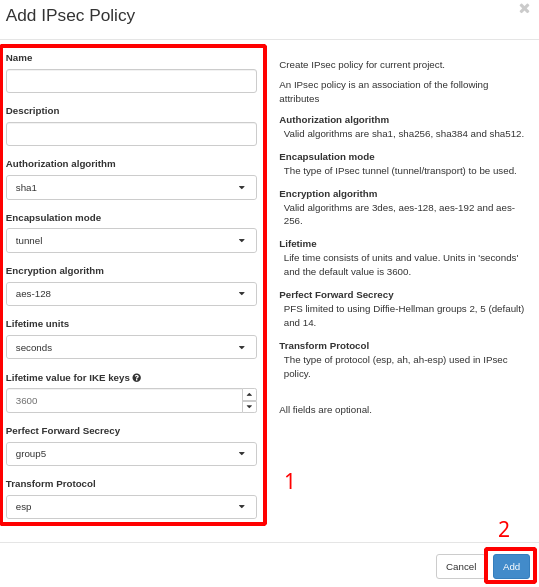
In the form that opens, fill in (item 1):
- Name (a name to identify the policy)
- Description (optional field with any description)
- Authorization algorithm — as in the IKE policy, this is the authentication (integrity) algorithm for the IPsec packets. It must match on both sides
- Encapsulation mode (the tunnel's operating mode)
- Encryption algorithm (the connection's encryption algorithm)
- Lifetime units — the unit for this phase's key lifetime:
seconds- Lifetime value — how long the phase 2 key is valid before it is renegotiated. Usually shorter than phase 1 — a common value is
3600(1 h)- Perfect Forward Secrecy — the phase 2 Diffie-Hellman group. The same reasoning as the IKE policy applies: it is what keeps a future leak of a long-term key from opening traffic already captured. It must match on both sides
- Transform Protocol (the IPsec protocol)
Once the form is filled in, click Add at the bottom (item 2)
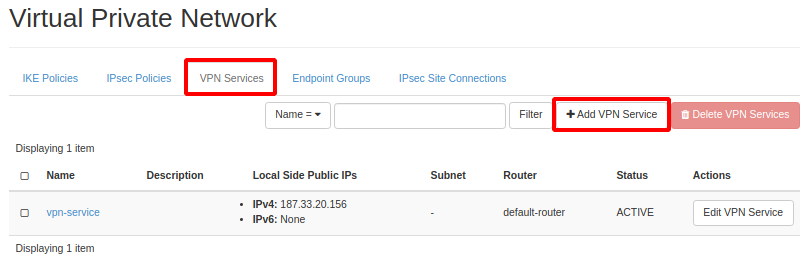
VPN Services
In the top menu click VPN Services and then + Add VPN Service.
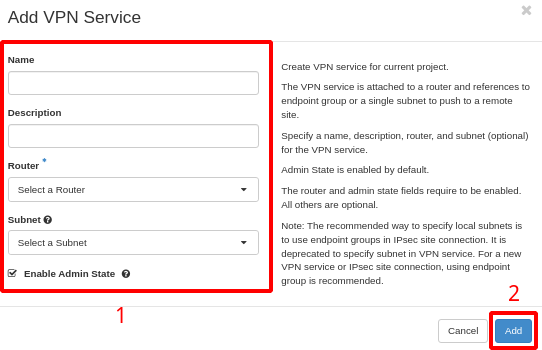
In the form that opens, fill in (item 1):
- Name (a name to identify the policy)
- Description (optional field with any description)
- Router (the virtual router created in the Routers walkthrough)
- Subnet (select the network addressing)
Once filled in, click Add at the bottom (item 2)
Endpoint Groups
In the top menu click Endpoint Groups and then + Add Endpoint Groups.
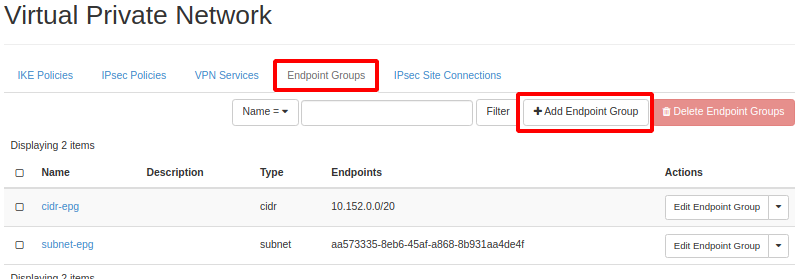
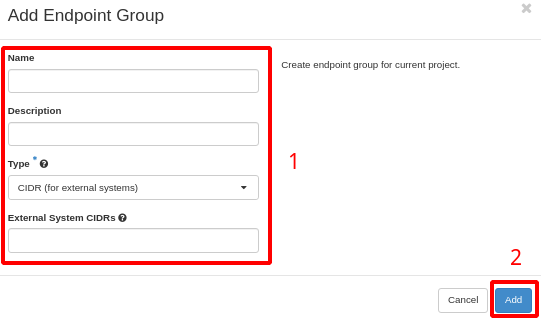
In the following form, fill in (item 1):
- Name (a name to identify the policy)
- Description (optional field with any description)
- Type (select the type, stating whether it is external or internal)
- If you are creating a connection to an external endpoint, select CIDR and fill in the IP block in IP/MASK format.
- If you are creating a VPN between networks in the cloud, select
Subnetand pick the IP list.
Once filled in, click Add at the bottom (item 2)
IPSEC Site Connection
This is the last step: it ties everything created so far into a tunnel.
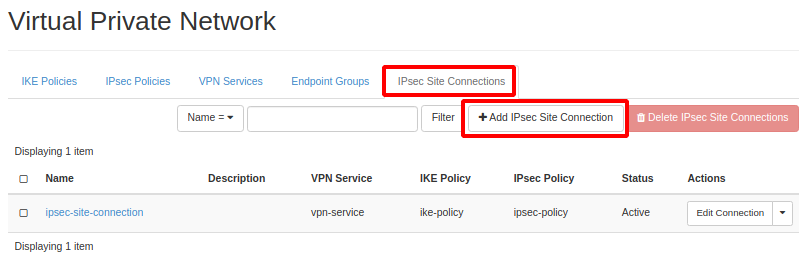
In the top menu click IPSEC Site Connection and then + Add IPSEC Site Connection.
Depending on the console version, the tab shows as IPSEC Site Connection or IPsec Site Connections. It is the same tab — the last one in the VPN menu, after Endpoint Groups.
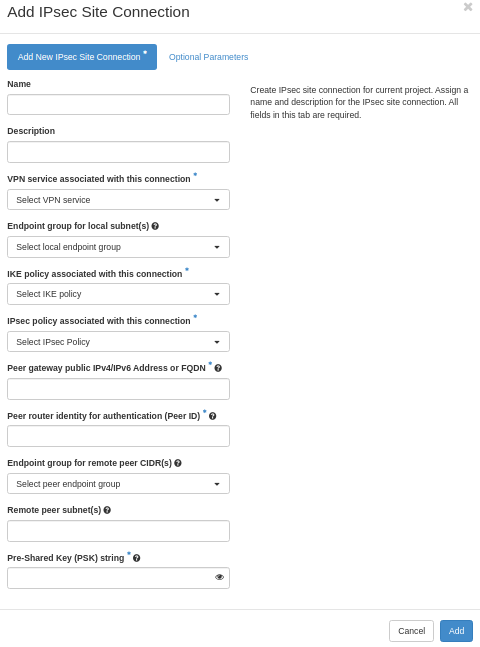
In the window that opens, on the main tab, fill in the following fields:
- Name — a name to identify the connection
- VPN service associated with this connection — the VPN service created earlier (section VPN Services)
- Endpoint group for local subnet(s) — the
Subnetendpoint group holding your networks (section Endpoint Groups)- IKE policy associated with this connection — the IKE policy created earlier (section Internal Key Exchange Policies)
- IPsec Policy associated with this connection — the IPsec policy created earlier (section IPsec Policies)
- Peer gateway public IPv4/IPv6 Address or FQDN — the public address or name of the gateway on the other side
- Peer router identity for authentication (Peer ID) — the identity the other side presents during authentication. It is usually the peer's own public address; it must match exactly what the other side sends
- Endpoint group for remote peer CIDR(s) — the
CIDRendpoint group holding the remote networks- Pre-Shared Key (PSK) string — the secret shared between the two sides
Generate a long, random PSK — for example, openssl rand -base64 32. Never use an example value from this or any other documentation.
- Transport: agree it with the other side over a secure channel (a password vault, an encrypted channel). Do not send it by email or plain-text message.
- Storage: keep it in a secrets vault, not in a spreadsheet, ticket, or repository.
- Rotation: change it periodically, and whenever someone with access leaves the team. The change has to be coordinated: both sides change the PSK in the same window, and the tunnel stays down until they match.
- Revocation: an exposed PSK requires an immediate change on both sides; removing the connection on one side alone is not enough.
Once the connection is created, you can create static routes on your network — see the Configuring static subnet routes walkthrough.
Additional, optional parameters can be configured if needed.
- Maximum Transmission Unit size for the connection — the size of the transmitted packet (MTU). The default is 1500; sizes above 1500 may be fragmented.
- Dead peer detection actions — controls the use of the Dead Peer Detection protocol (DPD, RFC 3706), where R*U*THERE notification messages (IKEv1) or empty INFORMATIONAL messages (IKEv2) are sent periodically to check the IPsec peer is alive. The values clear, hold, and restart enable DPD and determine the action taken on timeout.
- hold — installs a trap policy that captures matching traffic and tries to renegotiate the connection on demand
- clear — the connection is terminated with no further action
- restart — immediately triggers an attempt to renegotiate the connection
- disabled — active sending of DPD messages is turned off
- Dead peer detection interval — an interval in seconds; a valid integer smaller than the
dead peer detection timeout.- Dead peer detection timeout — an interval in seconds; a valid integer larger than the
dead peer detection interval.- Initiator state — the possible states are:
- bi-directional — this site also initiates the connection to the other peer.
- response-only — this site waits for the other peer to initiate the connection.
- Enable Admin State — the IPsec connection's starting state. If disabled (unchecked), the IPsec connection does not forward packets.
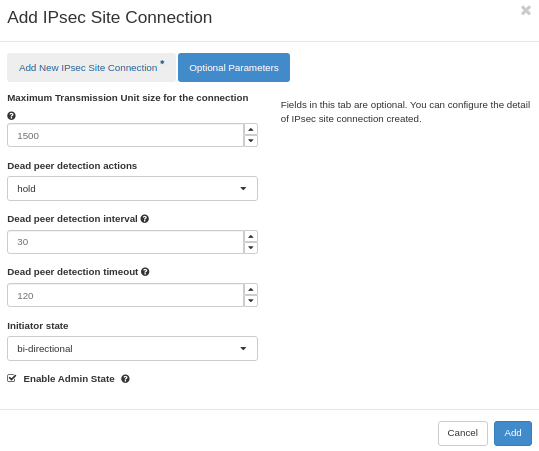
Once the form is filled in, click Add at the bottom
To check whether the connection succeeded, look at the Status column in the connection list. The status should be Active

Troubleshooting the VPN connection
Sometimes a preconfigured VPN connection that was working drops, for a number of reasons. The combination of settings matters for the site connection to reconnect to its peer. Even so, if the two sides do not have matching settings — including those not exchanged during connection setup — manual intervention may be needed, whether just to verify or to take real action.
Below are some verification options and suggested remedies.
It is important to check:
- Whether the peer connection is up
- Whether there is internet connectivity at the site.
- Whether the peer site's configuration changed.
- Phase 1 and 2 policy settings (algorithms, timeouts, and so on)
- IPsec settings (PSK, CIDR, peer ID, the peer gateway's public IP address or FQDN, and so on)
- The DPD (Dead Peer Detection) configuration on both sites.
Problem / suggested remedy
Is the peer connection down?
Ask the remote peer's administrator to check the connection. If the remote peer's ISP is having problems, look into using another provider and set up a secondary access configuration.
Is there connectivity to the site (local peer)?
- Can any compute instance, load balancer, Kubernetes cluster, database as a service, and so on, be reached remotely on its public IP?
- Is the cloud administrative console reachable?
- Check that your internet connection is fine
- Contact NNumbers technical support.
- Does the gateway IP (the router's public IP) respond?
- You may need to restart the router (see Restarting a router).
Did the peer site's configuration change?
- Contact the peer's administrator and compare settings.
- Check that the IKE and IPsec policies (algorithms, timeouts, and so on) are unchanged
- Check with the remote peer's administrator whether the IPsec connection settings (PSK, CIDR, peer ID, the peer gateway's public IP address or FQDN, and so on) were changed.
The connection is up, the router is fine, the administrative console is reachable, but the internal network no longer reaches the internal machines
- Check whether the peer's private network changed. If it did — or if a network that was not accounted for now needs to be included — create a new endpoint group of type CIDR with the CIDR(s) you need (see Endpoint Groups)
The connection is unstable
- Check with the remote peer's administrator how the gateway connection to their provider is behaving, and whether it is unstable.
- Consider whether a different Dead Peer Detection configuration is more suitable (see IPSEC Site Connection, optional parameters).
Next steps
Was this page helpful?
Report a problem on this pageDo not send passwords, keys, tokens, or customer data.