Application credentials
Application credentials let applications reach NNumbers Cloud services directly.
They are commonly used to integrate with CI/CD systems (for automated deployment, for example), and by applications that need to read from and write to NNumbers Cloud services such as Object Storage.
Creating an application credential
To create an application credential, go to Identity -> Application Credentials and click Create Application Credential

The screen below then appears; fill in the fields according to what the application needs. Guidance for each field follows, alongside the screen:
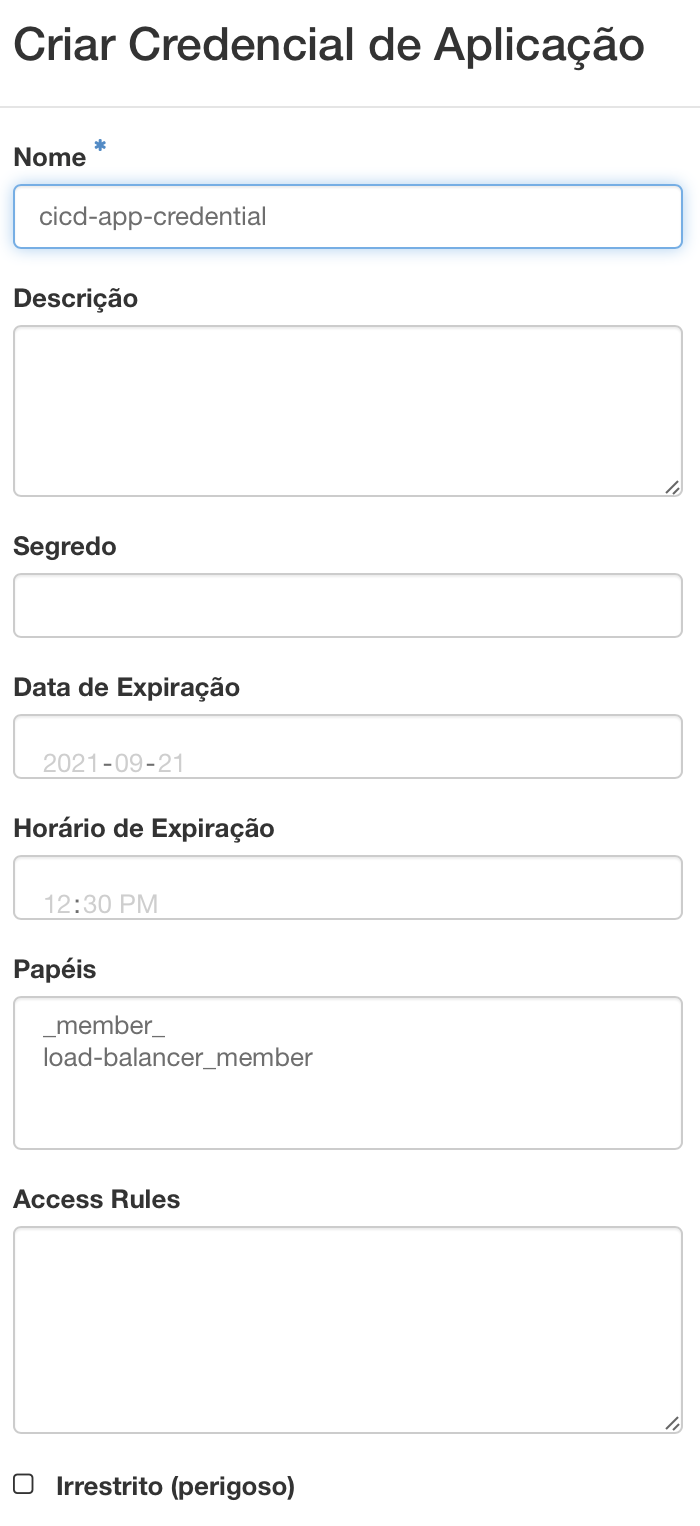
Name: the application credential's name makes it easy to identify the credential if you need to retrieve it, expire it, and so on
Description: informational description of the credential (optional).
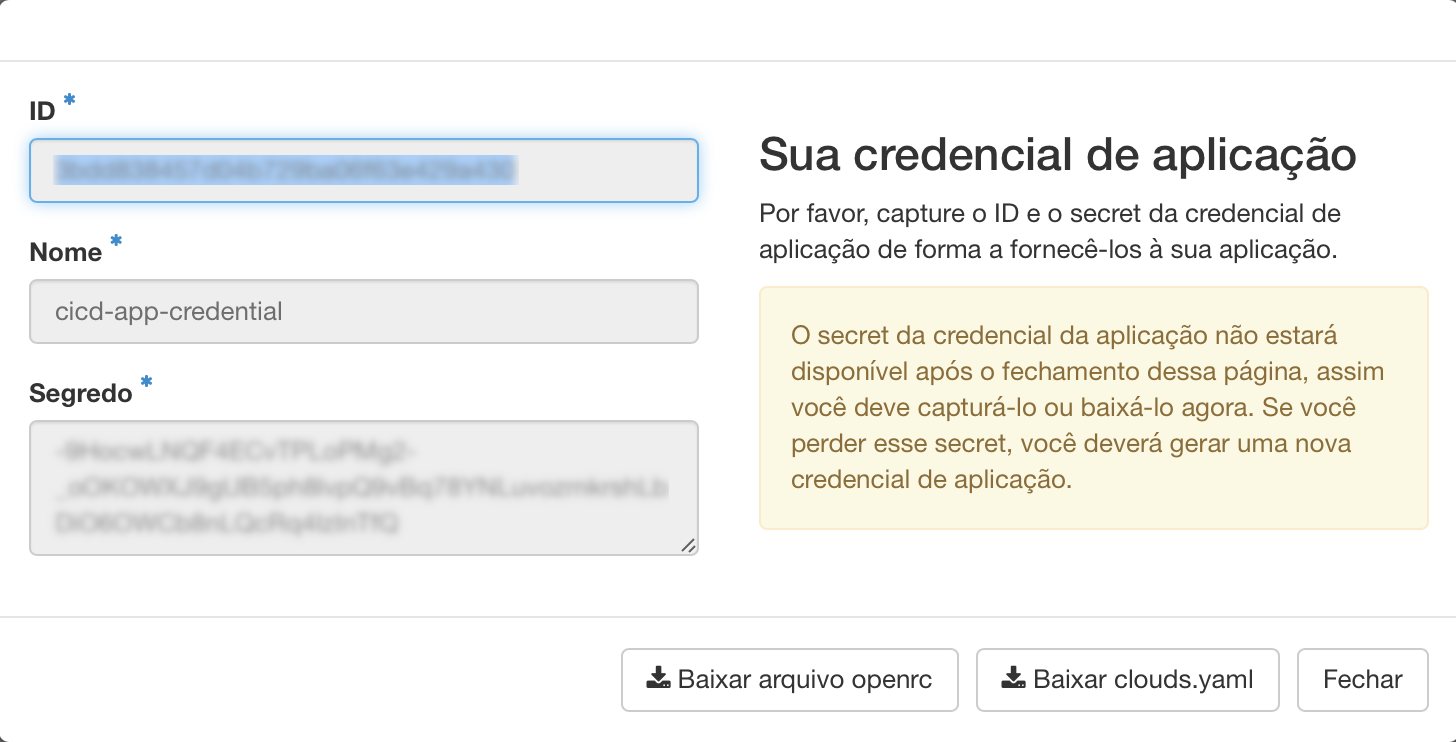
Secret: you can supply your own secret, or leave it blank and one is generated for you. Once your application credential is created, the secret is revealed once. If you lose the secret, you have to generate a new application credential.
Expiration date / time: you can give the application credential an expiry. Expiry is in UTC. If you supply an expiration date without a time, the time is taken as 00:00:00. If you supply an expiration time without a date, the date is taken as today.
Roles: you can select one or more roles for this application credential. If you select none, all roles assigned in the current project apply to the application credential.
Access rules: if you want finer-grained access control delegation, you can create one or more access rules for this application credential. The access rule list must be a JSON- or YAML-formatted list of rules, each containing a service type, an HTTP method, and a URL path — for example:
- JSON
- YAML
[
  {
    "service": "compute",
    "method": "POST",
    "path": "/v2.1/servers"
  }
]
- service: compute
  method: POST
  path: /v2.1/servers
- Unrestricted: by default, for security reasons, application credentials are not allowed to create additional application credentials or keystone trusts. If your application credential needs to do those things, check "unrestricted".
The screen below then appears with the credential ID, the secret (generated, if you did not supply one), and options to download the RC files (openrc: shell script) and clouds.yaml containing the credential for your application to use:
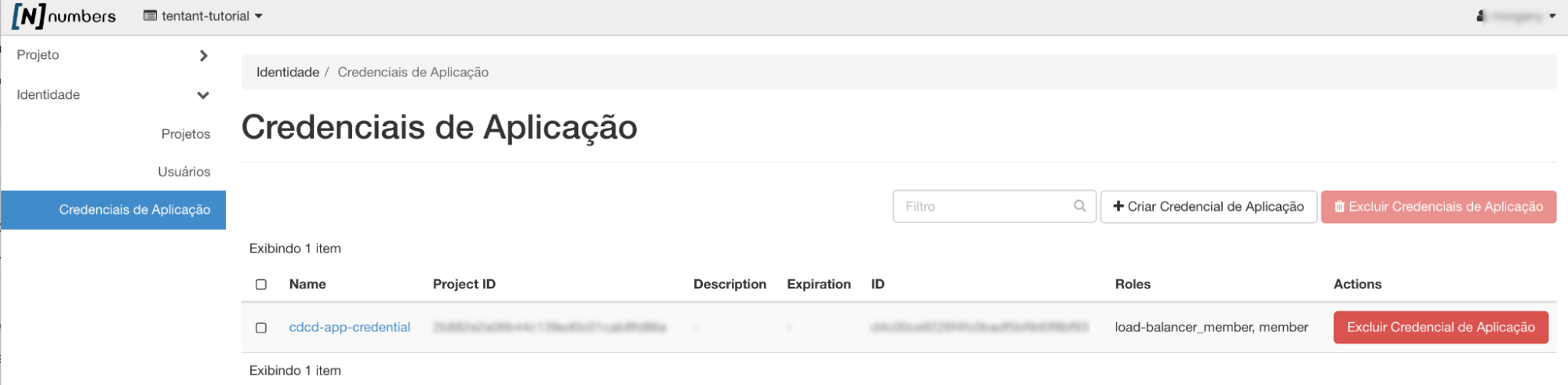
To delete a credential, click the Delete Application Credential button next to it. To delete several application credentials, tick the checkbox at the right of each row you want and then click the Delete Application Credentials button at the top right
Next steps
Was this page helpful?
Report a problem on this pageDo not send passwords, keys, tokens, or customer data.