MCP servers
The Model Context Protocol (MCP) is an open standard for connecting external tools to an AI agent. Imaginne is an MCP client: you point it at one or more MCP servers, and their tools become available to the agent as if they were native tools.
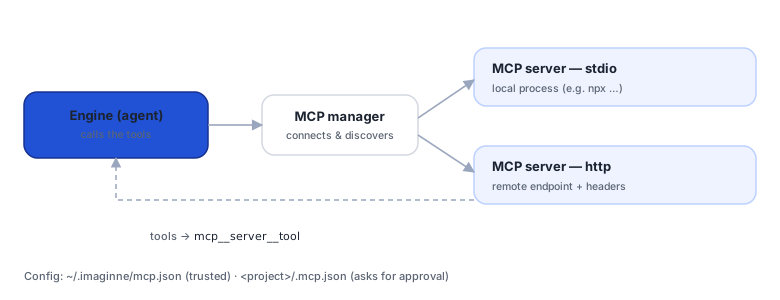
Where it works
MCP runs locally in Imaginne, so it's available in the Desktop and the Terminal (TUI) — and in the local process that the VS Code extension starts. It is not available in the browser chat (there the agent runs on the server).
There's no screen or command to manage MCP servers today — you edit a JSON file and the tools start appearing to the agent in the next session. There are also no built-in MCP servers: you point at an external server.
Configuration
There are two scopes, both in the .mcp.json format with the mcpServers key:
| Scope | Path | Default trust |
|---|---|---|
| User | ~/.imaginne/mcp.json | trusted (trusted: true) |
| Project | <workspace>/.mcp.json | untrusted (asks for approval) |
If a server with the same name exists in both, the project one wins.
Example
{
  "mcpServers": {
    "filesystem": {
      "type": "stdio",
      "command": "npx",
      "args": ["-y", "@modelcontextprotocol/server-filesystem", "/Users/you/projects"],
      "trusted": true
    },
    "my-api": {
      "type": "http",
      "url": "https://api.example.com/mcp",
      "headers": { "Authorization": "Bearer ${API_TOKEN}" }
    }
  }
}
Fields
| Field | Type | Default | Description |
|---|---|---|---|
type | string | stdio | Transport: stdio (local process) or http. |
command / args / env | string / list / object | — | For stdio: the process to start and its environment. |
url / headers | string / object | — | For http: the endpoint and headers (e.g., Authorization). |
enabled | bool | true | Disable without removing the entry. |
trusted | bool | user=true, project=false | A trusted server skips approval for read-only tools. |
timeout | duration | 5m | Maximum time per call (e.g., 30s, 2m). |
Environment variables are expanded in command/args/env/url/headers with $VAR or ${VAR} — use them to avoid writing secrets into the file. The expanded values are never written to logs.
Only stdio (a local process that speaks JSON-RPC) and http. There is no WebSocket, no OAuth, and no dedicated SSE transport.
How the tools show up
On connection, Imaginne discovers the server's tools and registers them in the same set the agent already uses, named mcp__<server>__<tool> (e.g., mcp__filesystem__read_file). The model calls them exactly like a native tool.
Approval and security
- Untrusted server (the default for project servers): every tool call asks for approval.
- Trusted server: read-only / non-destructive calls run without a prompt; destructive actions still ask for confirmation (based on the MCP
readOnlyHint/destructiveHintannotations). - Approvals appear in the interface (a permission card in the Desktop, a prompt in the TUI), according to your autonomy.
An MCP server can read and act according to the tools it exposes. Only add servers you trust. A project's .mcp.json starts out untrusted on purpose — review it before setting trusted: true.
Walkthrough (example)
- Install/choose an MCP server (e.g., a filesystem server via
npx @modelcontextprotocol/server-filesystem). - Create
~/.imaginne/mcp.jsonwith the server entry (see the example above). - Restart the session (close and reopen the Desktop, or restart the TUI).
- Ask the agent to do something that uses the tool — it will invoke the tool and, if the server is untrusted, ask for approval.
See also
Was this page helpful?
Report a problem on this pageDo not send passwords, keys, tokens, or customer data.