Remote session
The remote session lets you drive a session from another screen — a phone's browser or another computer — while the work keeps happening on your machine. The key point: your app (Desktop or TUI) stays the runtime; the Platform only relays the messages. Nothing runs on the server.
How it works
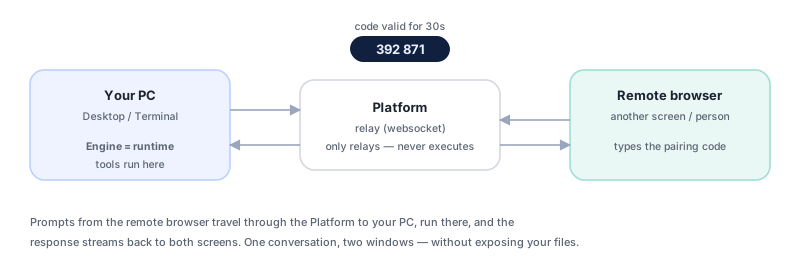
- Your local app generates a short-lived pairing code and a URL.
- On the other device, you open that URL, sign in, and paste the code.
- From then on, the prompts typed on the remote client run on your PC, and the stream of the response comes back to both screens.
Because execution is local, the remote session has the same access (and the same limits) as your normal session — including your workspace and the vault.
Pair on the Desktop
- Click the Remote pill (in the header).
- Select Create pair. The app shows a code (Crockford format) with a 30-second countdown and a URL to share (
<host>/remote). - Use Copy code / Copy URL to send it to the other device.
- On the other device, open the URL, sign in, and paste the code before it expires.
To end the pairing, use Revoke.
Pair on the TUI
- Type
/remote. The TUI shows a pairing code valid for 30 seconds. - In the other device's browser, open
<host>/remote, sign in, and paste the code. - Use
/remote statusto see the connection state and/remote stopto end it.
See all the commands in TUI commands.
Security
The remote session is designed to be secure by construction:
- It doesn't expose your files. The remote client sends prompts and receives responses; it doesn't browse your disk. Execution — and file access — keeps happening only in your local app.
- One active pair at a time. Only one pairing exists at once; creating a new one (or using Revoke) ends the previous one.
- Requires login. Both your app and the remote client must be authenticated with your organization identity. See Identity.
- Ephemeral code. The pairing code expires in 30 seconds; after that you need to generate a new one.
The Platform's role here is strictly a relay: it passes messages between the remote client and your app. The agent, the tools, and the files live on your machine. That's why the remote session only works while your app is open and connected.
When to use it
The remote session shines when the work needs to run on your machine, but you want to follow it from somewhere else:
- Keep going from a distance — fire off a prompt and follow the response on your phone as you step away from the computer.
- Secondary screen — leave the run going in the local app and read the transcript comfortably on another device.
- Long-running tasks — start a routine or a long generation and check the progress without going back to the keyboard.
When pairing fails
| Symptom | Cause | What to do |
|---|---|---|
| The code isn't accepted | It expired (good for 30s) | Generate a new one (Create pair / /remote) and paste it quickly. |
| "A pair is already active" | Only one pairing at a time | Use Revoke (Desktop) or /remote stop (TUI) and pair again. |
| Asks for login on the remote client | The remote session requires login | Sign in to the browser before pasting the code. |
| Nothing happens after pairing | The local app closed or lost its connection | Check that the app is open and online — it's the runtime. |
More general symptoms in Troubleshooting.
The remote session is not the same as the web chat. In the web chat, the agent runs on the server. In the remote session, the client in the browser is just a control: the agent keeps running in your local app. That's why the remote session sees your workspace and the hosted chat doesn't.
See also
Was this page helpful?
Report a problem on this pageDo not send passwords, keys, tokens, or customer data.